
Walkthrough
SIC Pizza, step by step
One live table, and everyone sees what they need. A guest proposes an item, the server approves it, the kitchen and expo work it, and the manager sees what needs attention. Here is that path in seven screens.
SIC Pizza is a fictional restaurant used to demonstrate a restaurant-agnostic platform. These are screens from the working prototype with invented data, and payments are simulated. It is a concept, not a deployed system.
Step 1 · Guest
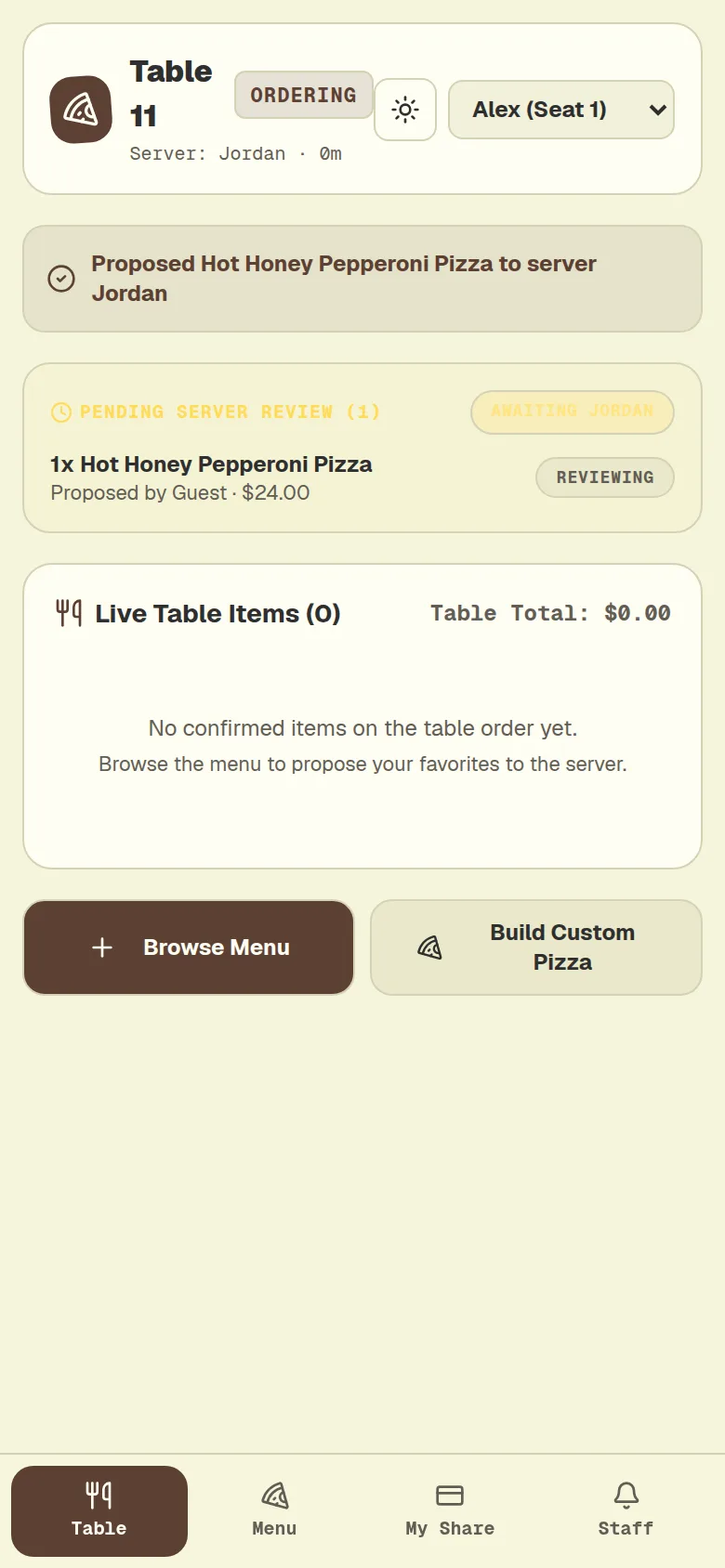
A guest proposes a pizza
The guest scanned into Table 11 and chose a pizza from the menu. The item shows under pending server review, not yet on the table order. The live table items list stays at zero until the server confirms.
Guest ordering here is a proposal that the server approves.
Step 2 · Server
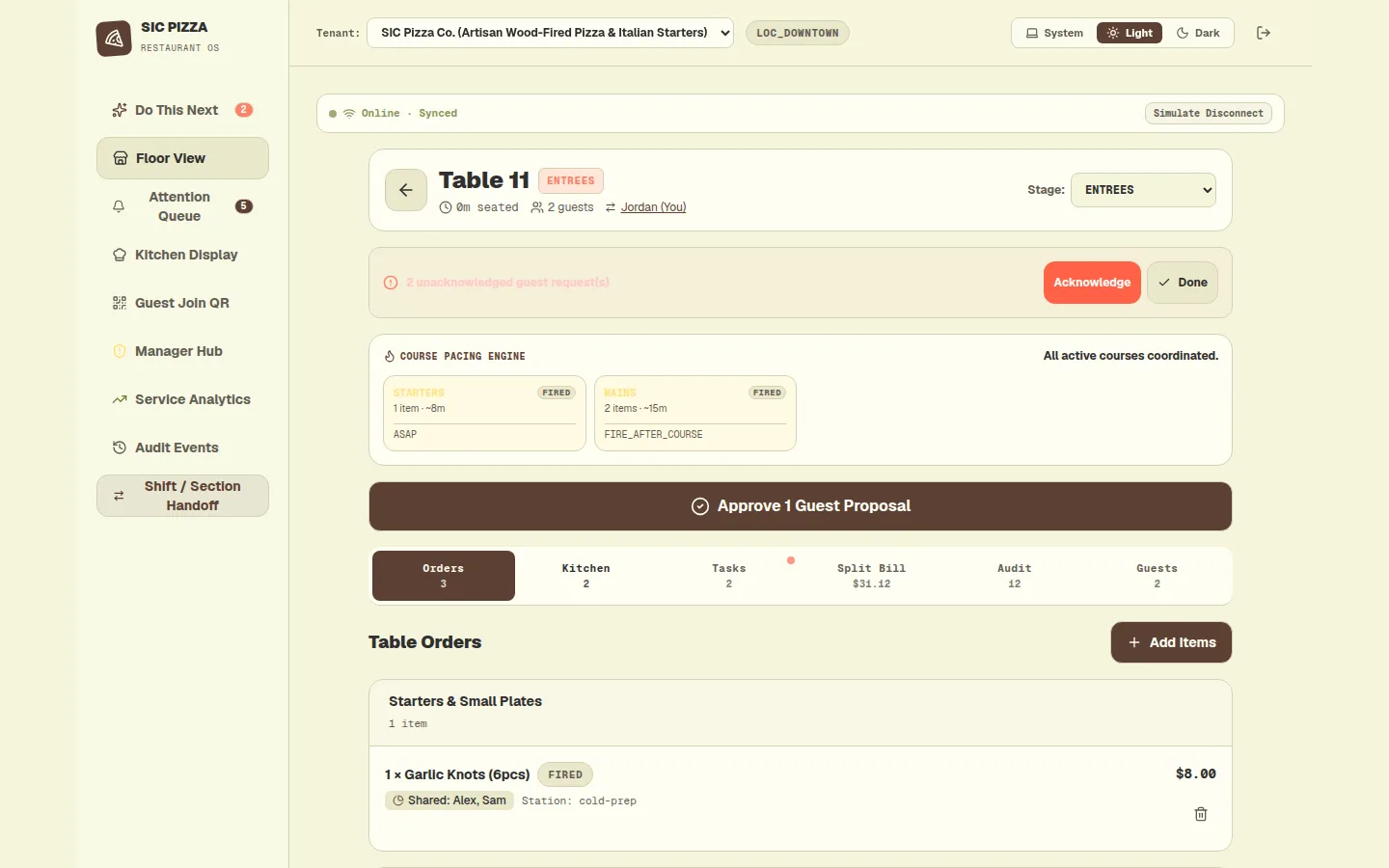
The server sees the table
The server's Table 11 view shows the stage, the course pacing for starters and mains, and the guest requests still waiting. A button at the centre approves the pending guest proposal.
In the demo the server screen runs on its own seeded sample table, so the pending item differs from the guest's.
Step 3 · Server
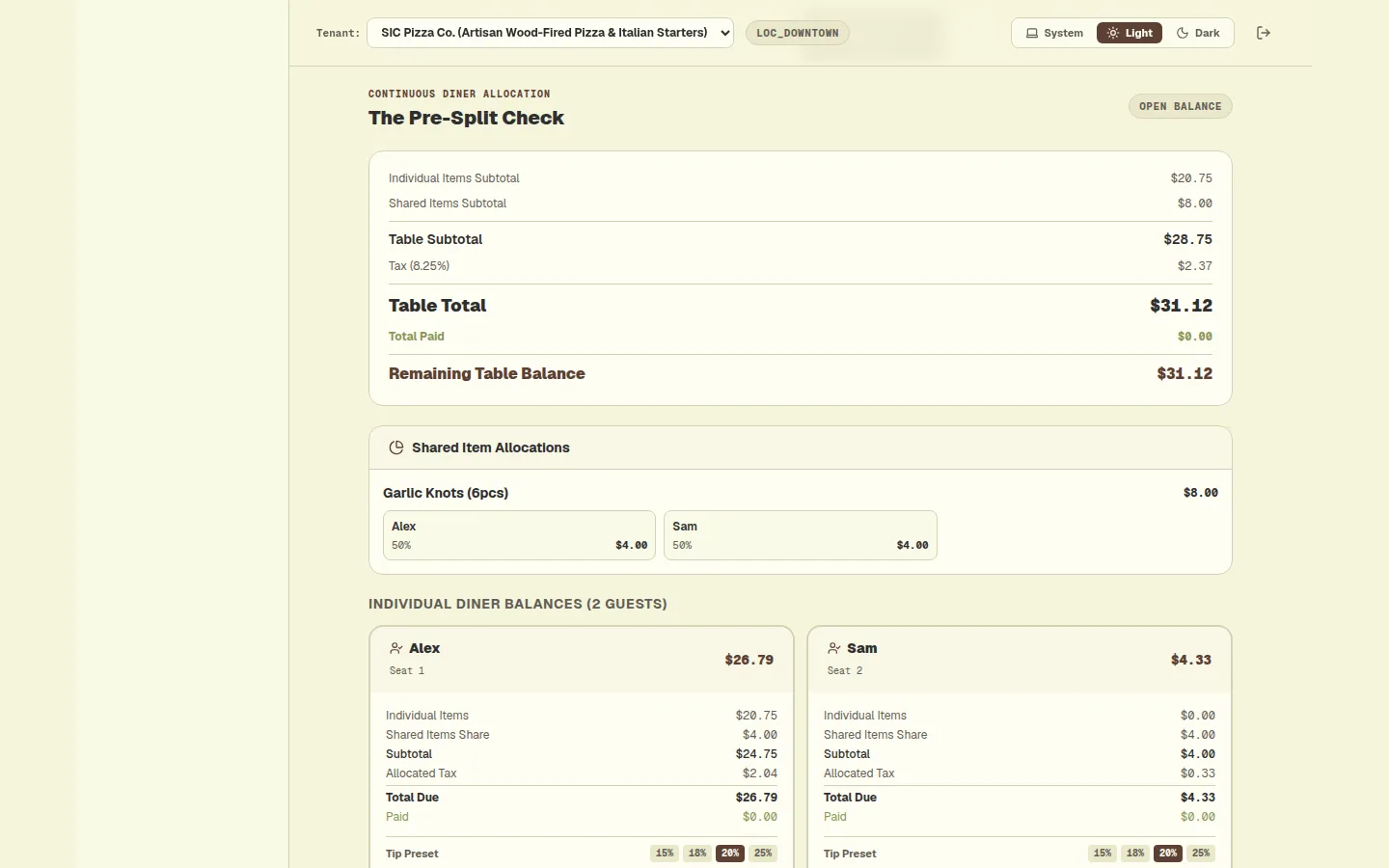
Each diner's share is tracked
The Split Bill tab lists the table subtotal, tax and total, then shows a shared starter divided between two diners. Each diner has a balance with the individual items, shared share, tax and tip presets.
Payments are simulated in this demo; nothing is charged.
Step 4 · Kitchen
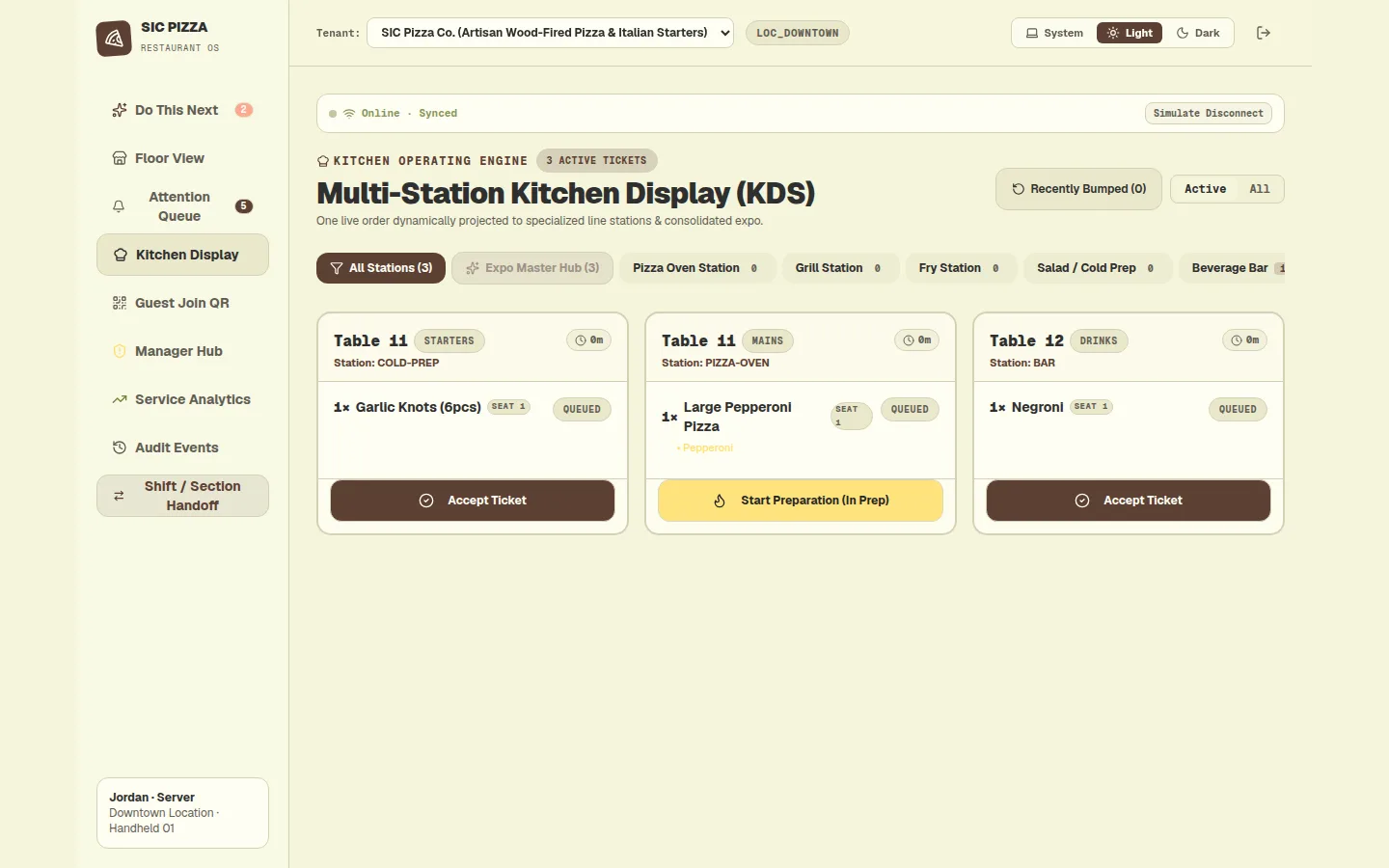
Tickets land at their stations
The kitchen display lists one ticket per course for Table 11 and a drinks ticket for Table 12, each tied to a station. The pizza ticket has been accepted and now offers Start Preparation.
Step 5 · Expo
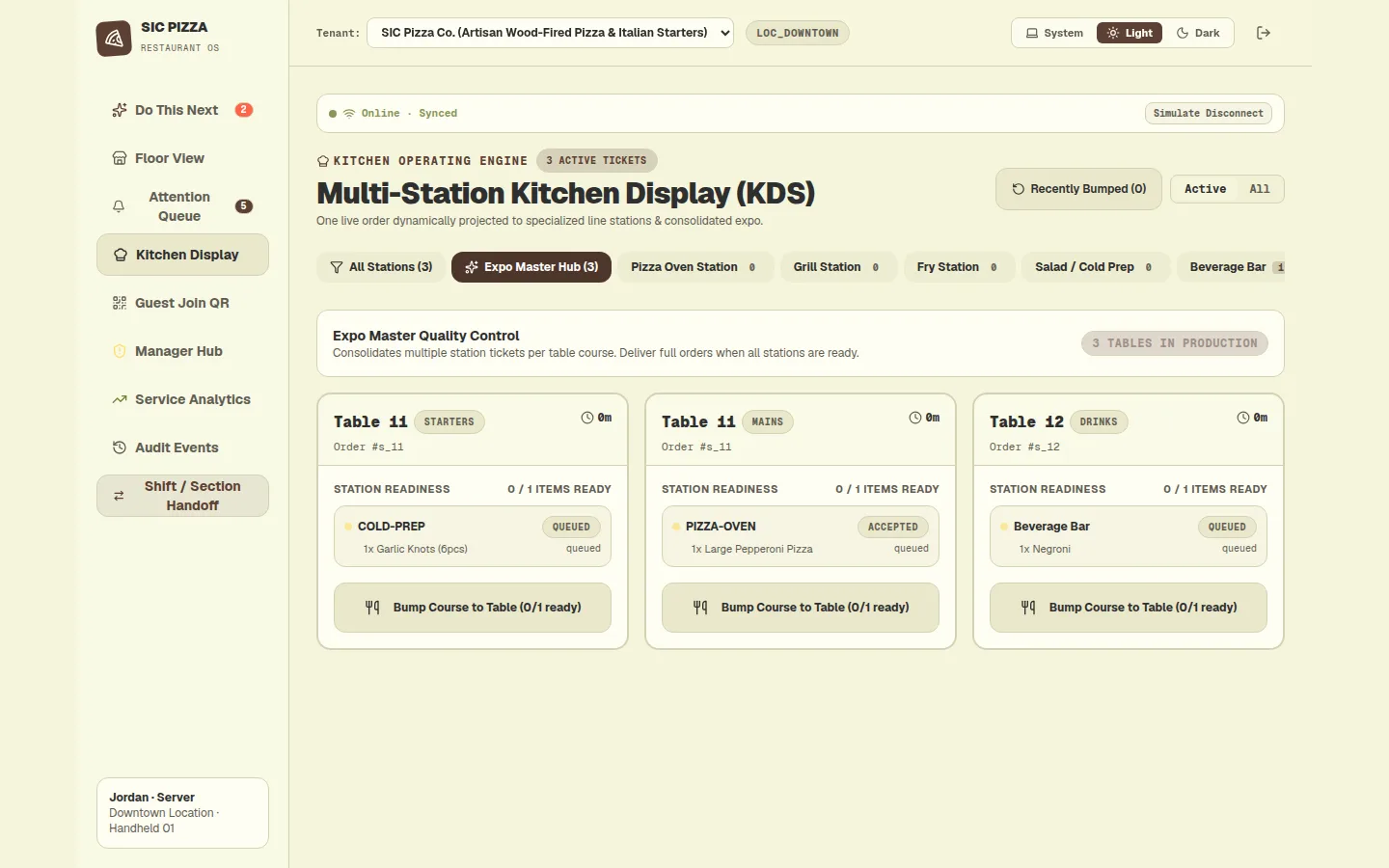
Expo sees every station for a course
The expo hub groups the station tickets for each table course and counts items ready against items in total. The pizza oven shows as accepted while the others are still queued.
A bump button for each course stays inactive until its items are ready.
Step 6 · Manager
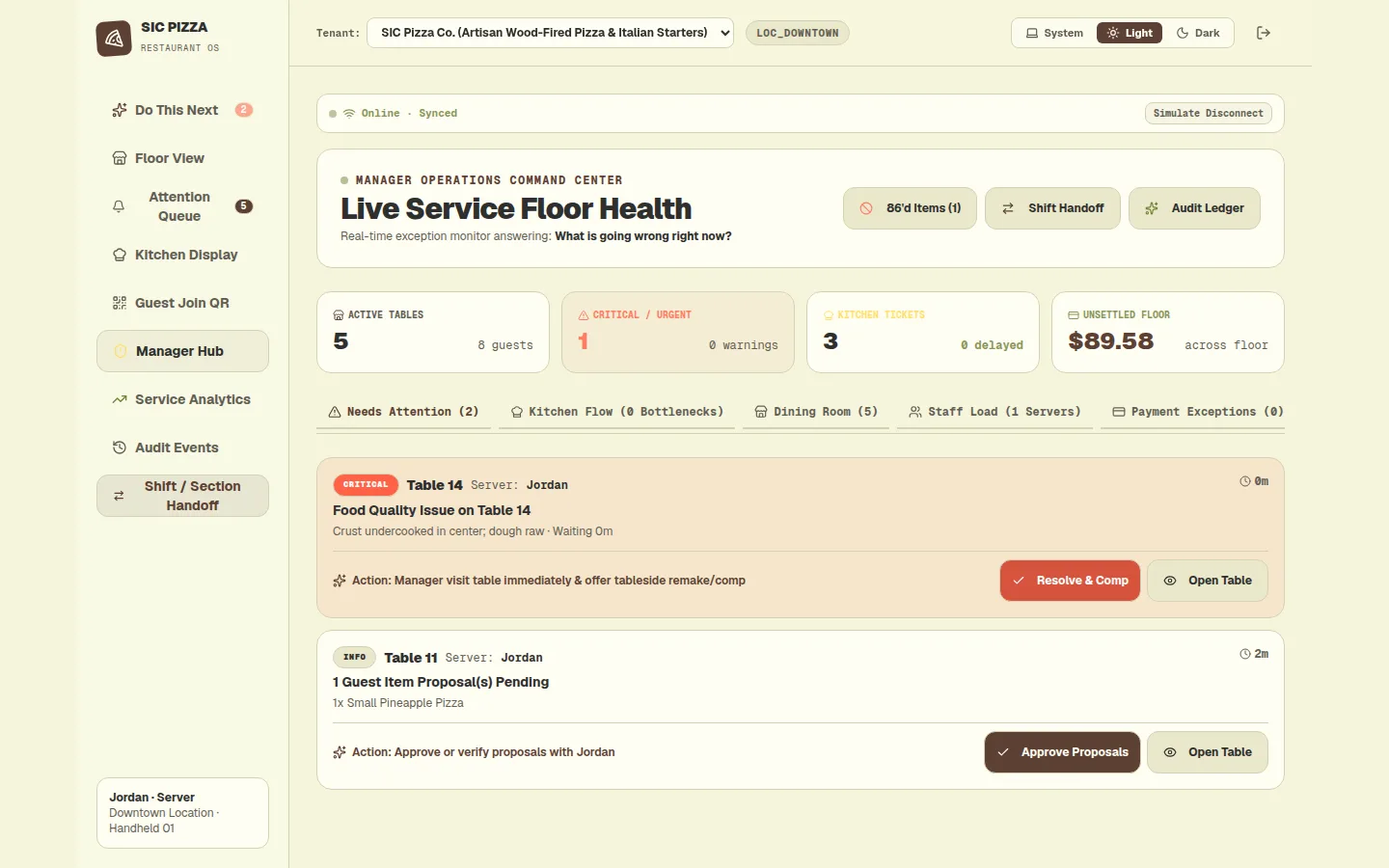
The manager sees what needs attention
The manager hub counts active tables, urgent items, kitchen tickets and the unsettled floor total. Below, a food issue on Table 14 and a pending guest proposal on Table 11 are listed with suggested actions.
Step 7 · Server
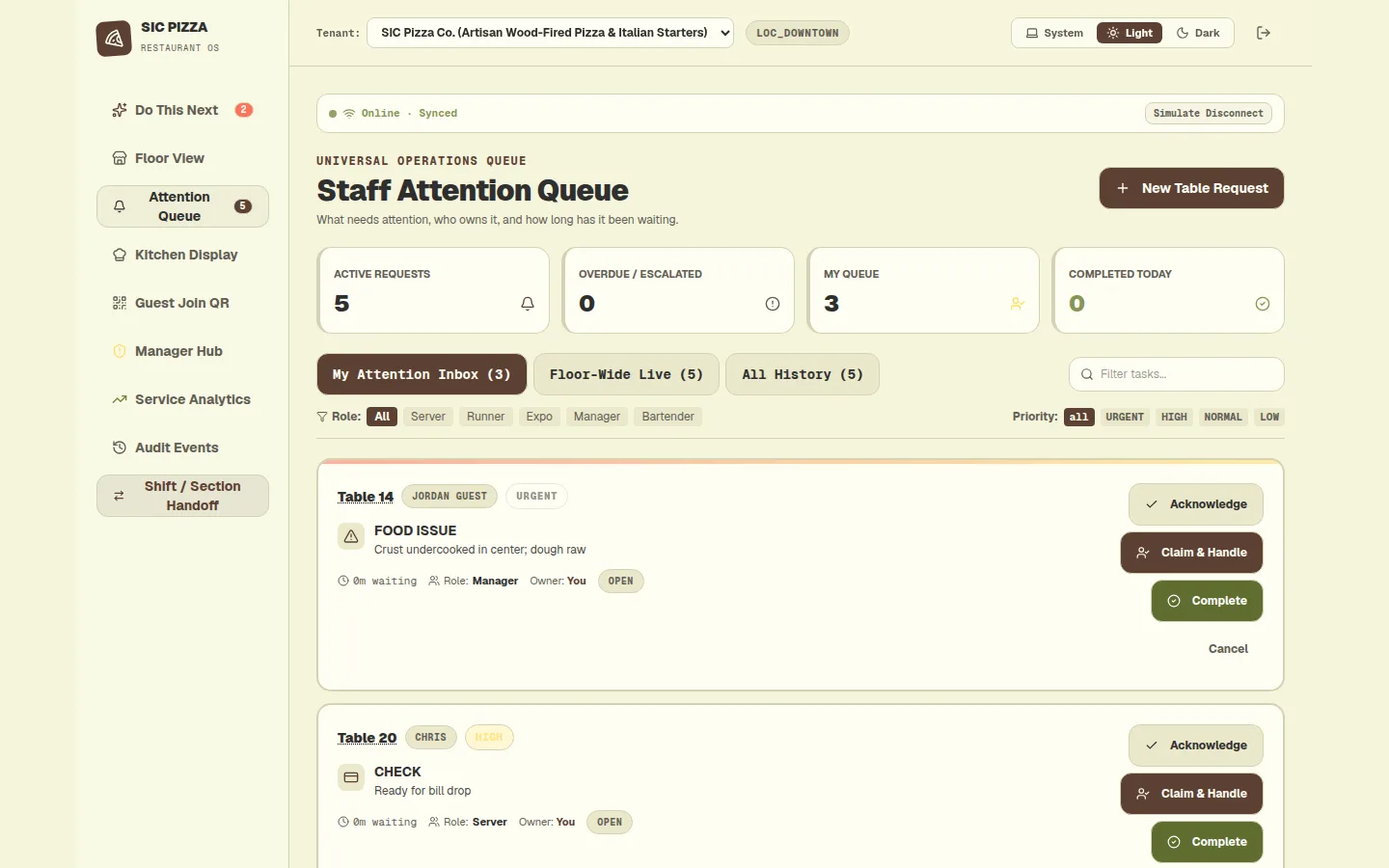
Requests have an owner and a clock
The attention queue lists guest requests such as a food issue and a check, each with a role, an owner and a waiting time. Staff can acknowledge, claim or complete a request, and filter by role or priority.
Want this shaped around your own restaurant?
We build ordering, kitchen and payment workflows around how your restaurant already runs, and you own the result.