
Walkthrough
Rework Flow, step by step
A freight load is rejected at a receiver and needs fixing at a dock. Here is that job from the driver's reservation to a signed packet the office can bill from, in seven screens.
These are screens from the working application, run with a made-up company name and example loads. The software is in development and has not been measured in a live operation.
Step 1 · Driver
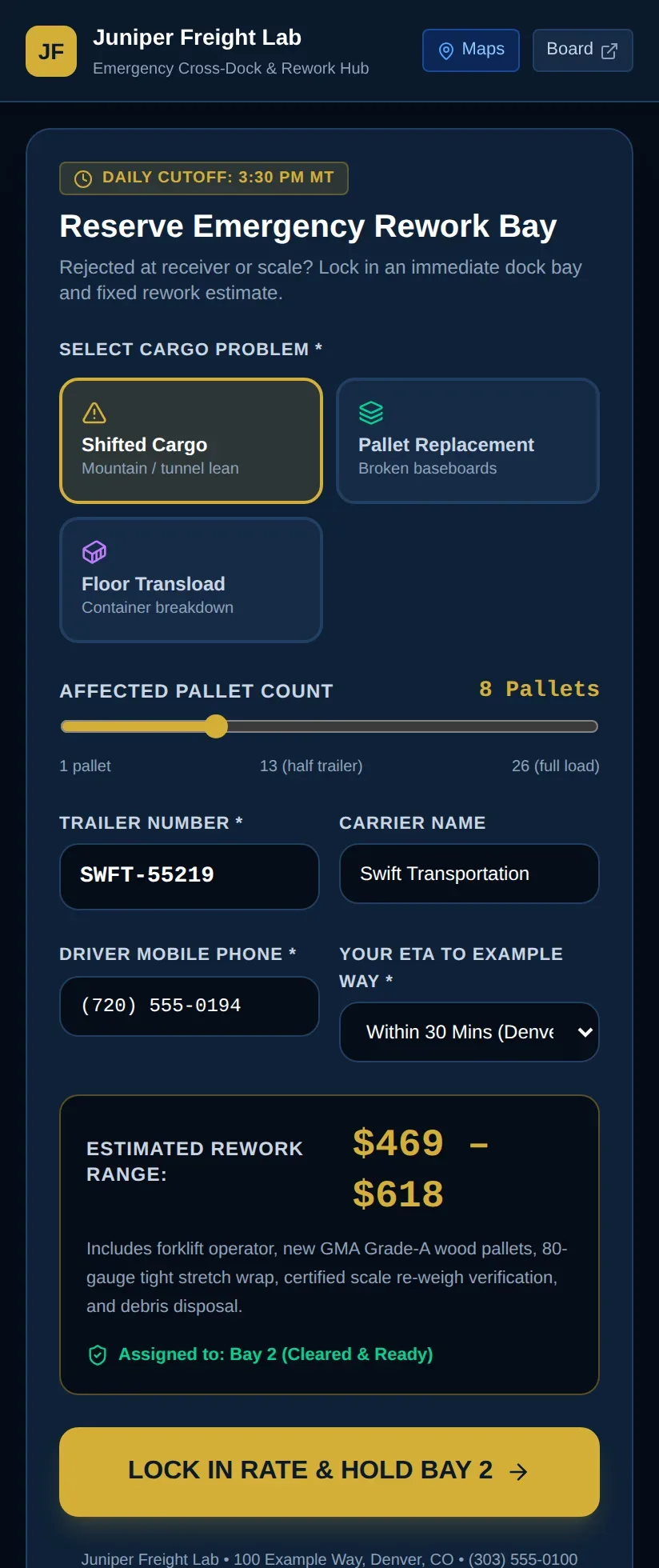
Reserve a rework bay from the road
A driver rejected at a receiver picks the problem, sets how many pallets are affected, and gets a fixed price range and an assigned bay before they arrive.
The estimate comes from the same rate table the dock uses to bill, so the number the driver sees is the number the office starts from.
Step 2 · Dock operator
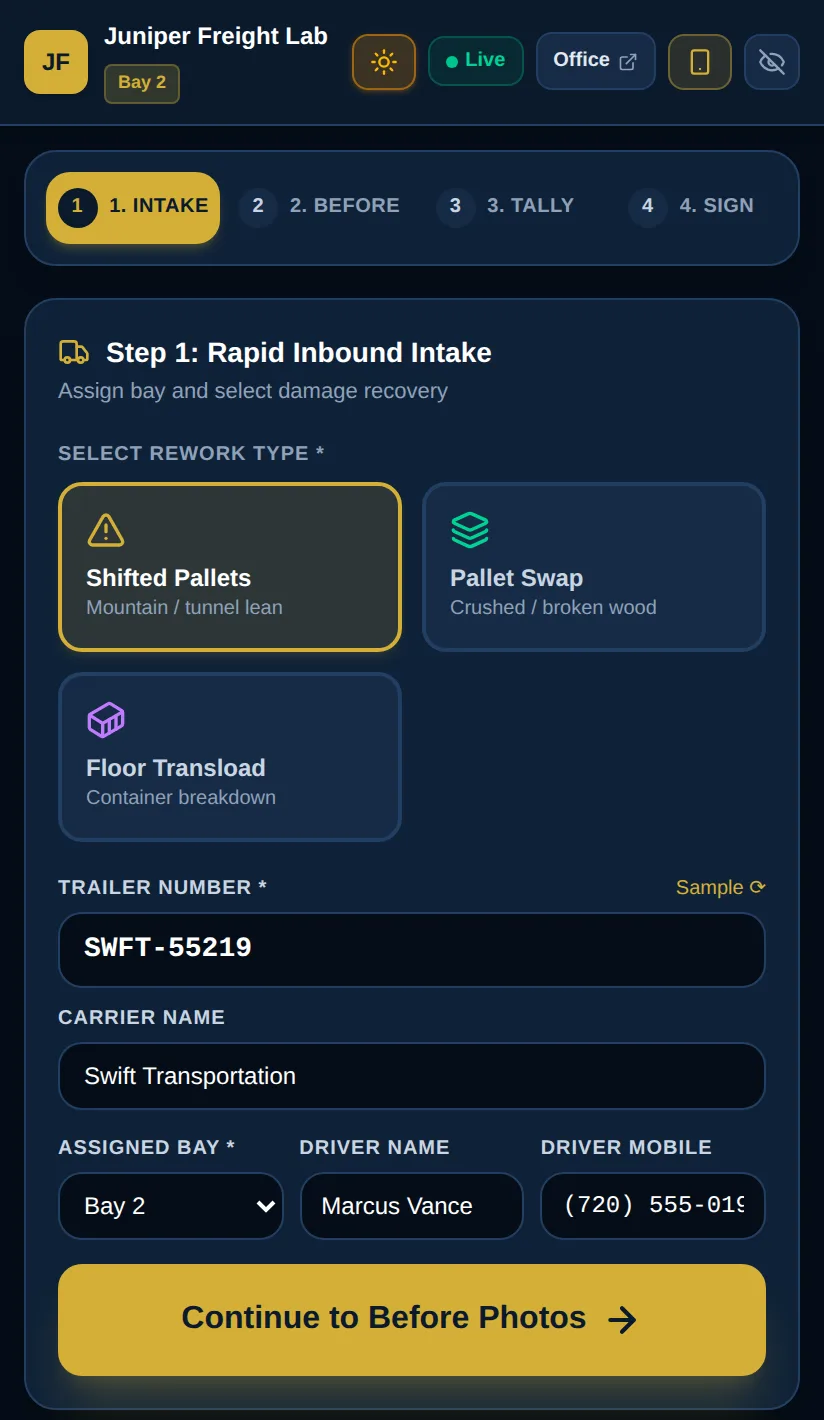
Intake on a phone or tablet
At the dock, the operator confirms the rework type, trailer, carrier, driver and bay. Big touch targets are sized for work gloves.
Step 3 · Dock operator
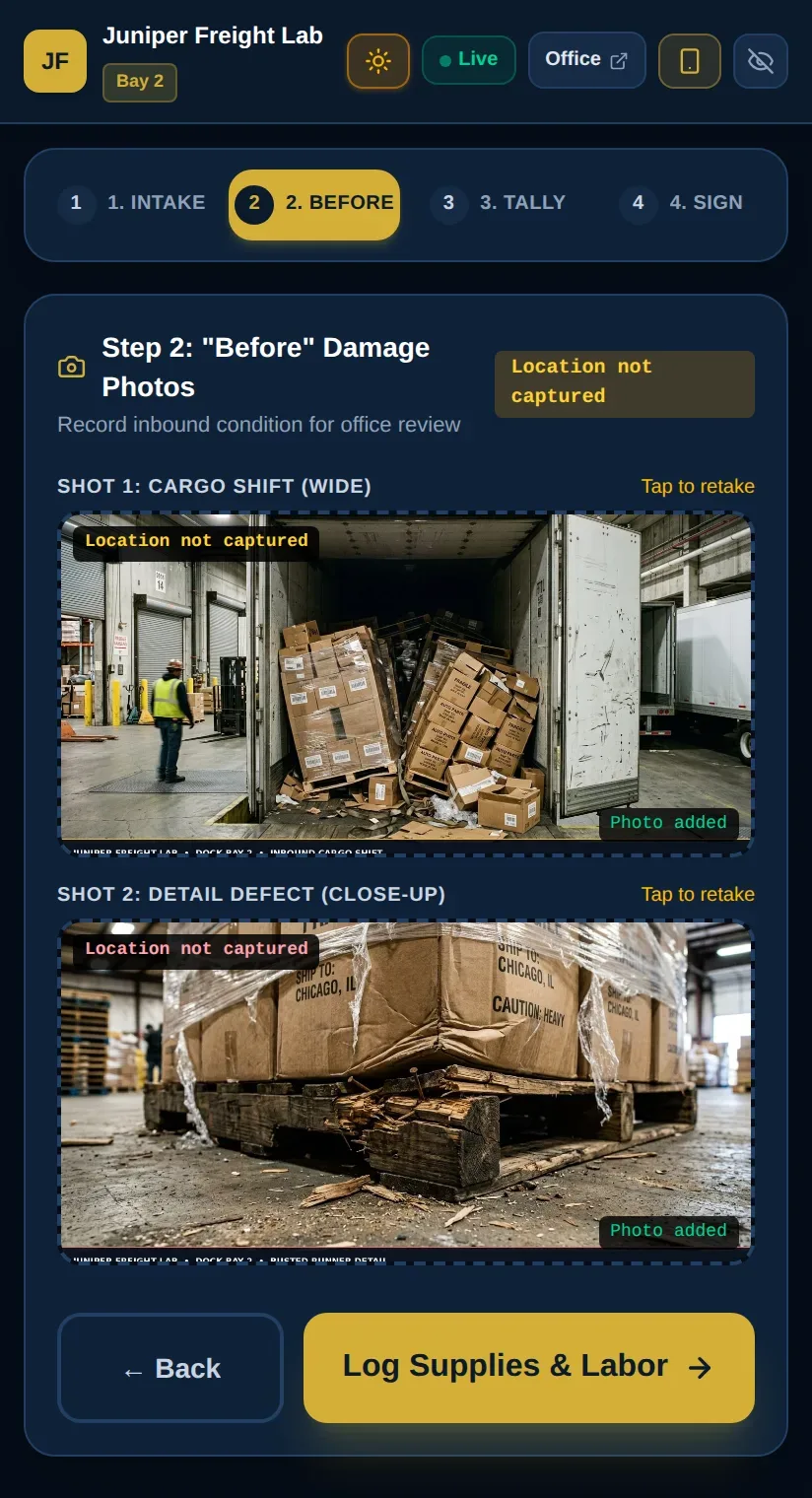
Photograph the problem before touching it
Two guided shots, a wide view and a close-up of the defect, record the condition the freight arrived in.
These photos travel with the job, so a later dispute about damage starts from evidence instead of memory.
Step 4 · Dock operator
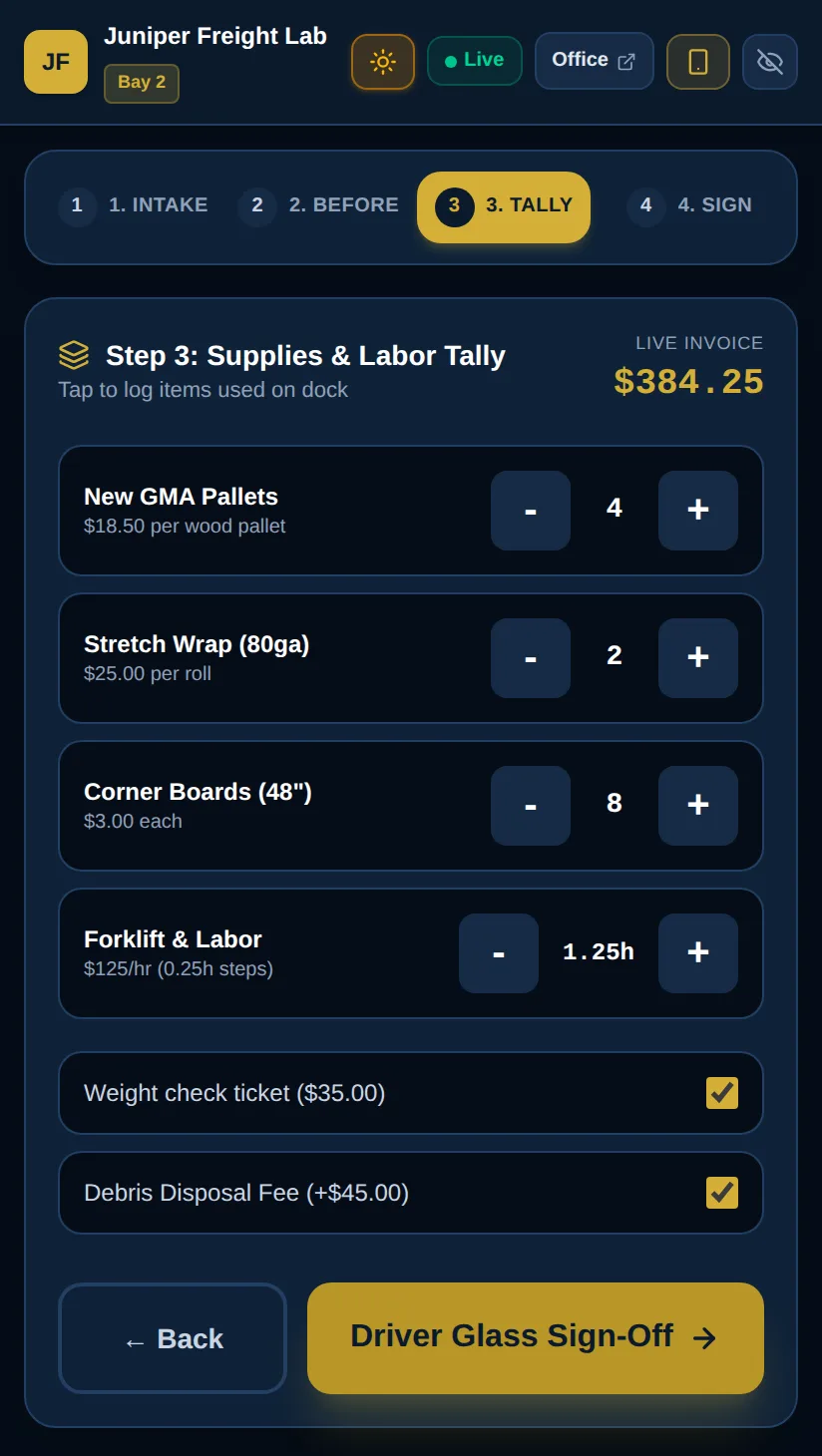
Tally supplies and labor as they are used
Pallets, stretch wrap, corner boards and forklift time are counted with plus and minus buttons. The live invoice updates with every tap.
Step 5 · Driver
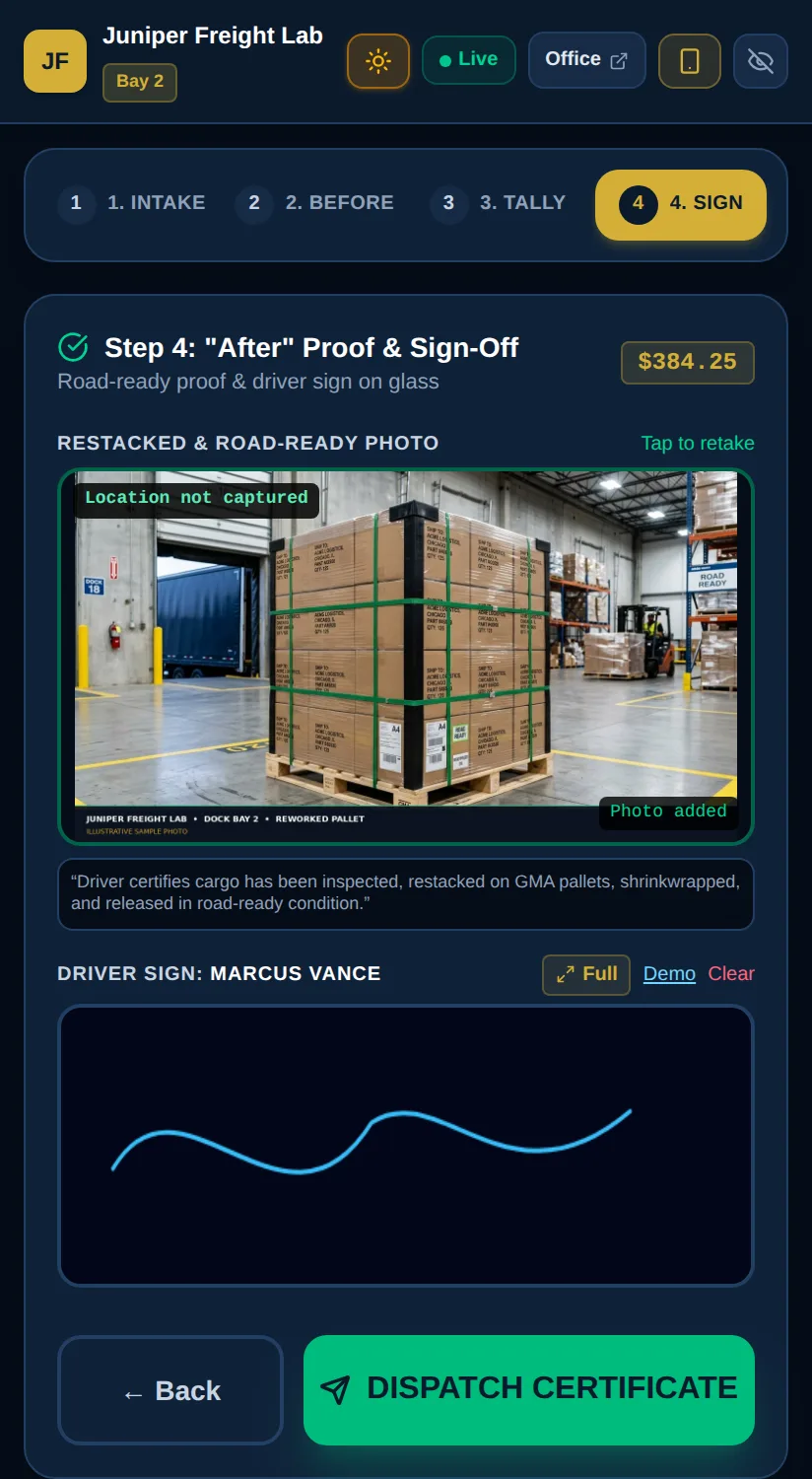
After photo and driver sign-off on the glass
The finished pallet is photographed, and the driver signs on the screen. Dispatching sends the completed record to the office.
Step 6 · Office
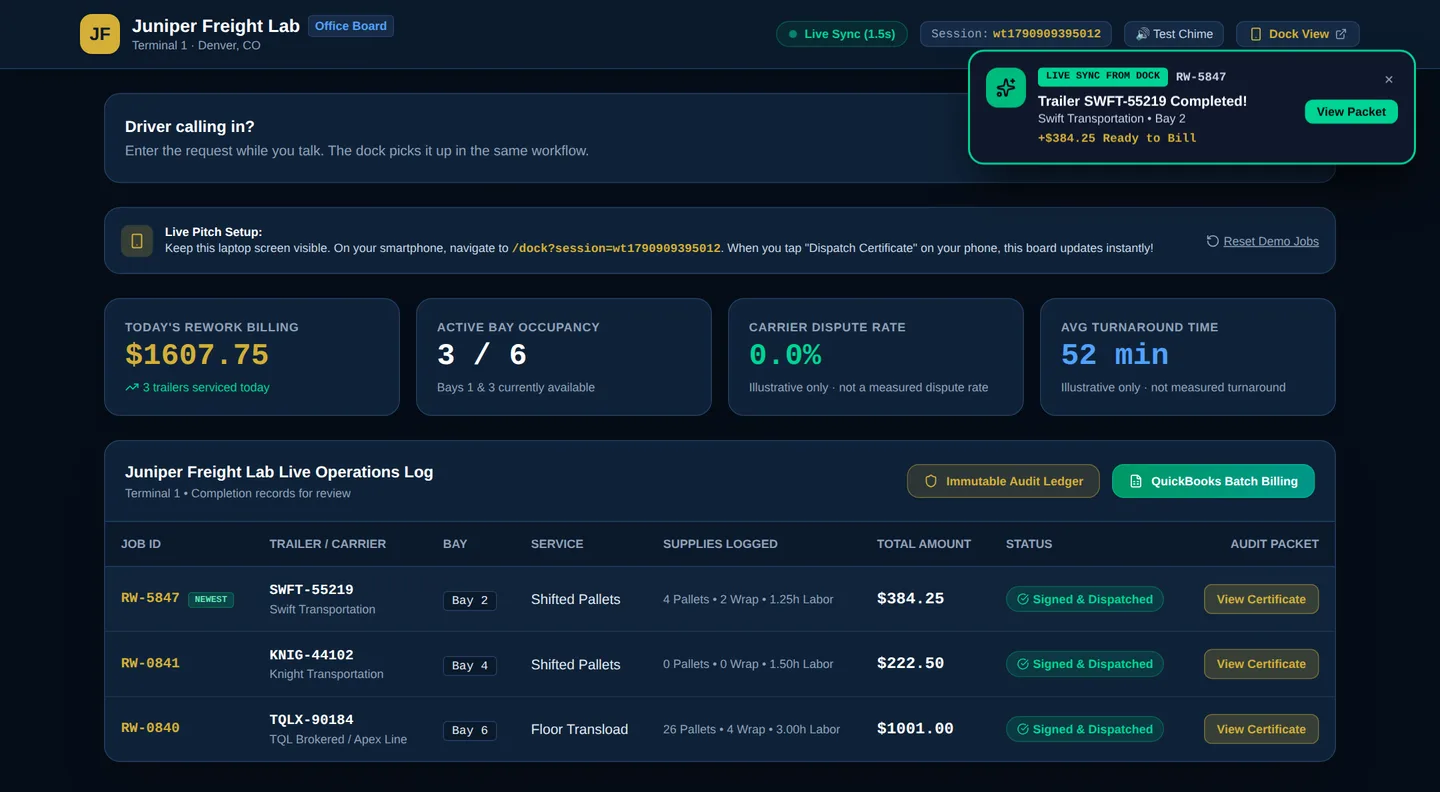
The office board updates on its own
The office screen watches for new work and alerts when the dock dispatches. Billing, bay occupancy and every job's status are on one board.
The dispute-rate and turnaround tiles are illustrative placeholders in this build, not measured results.
Step 7 · Office
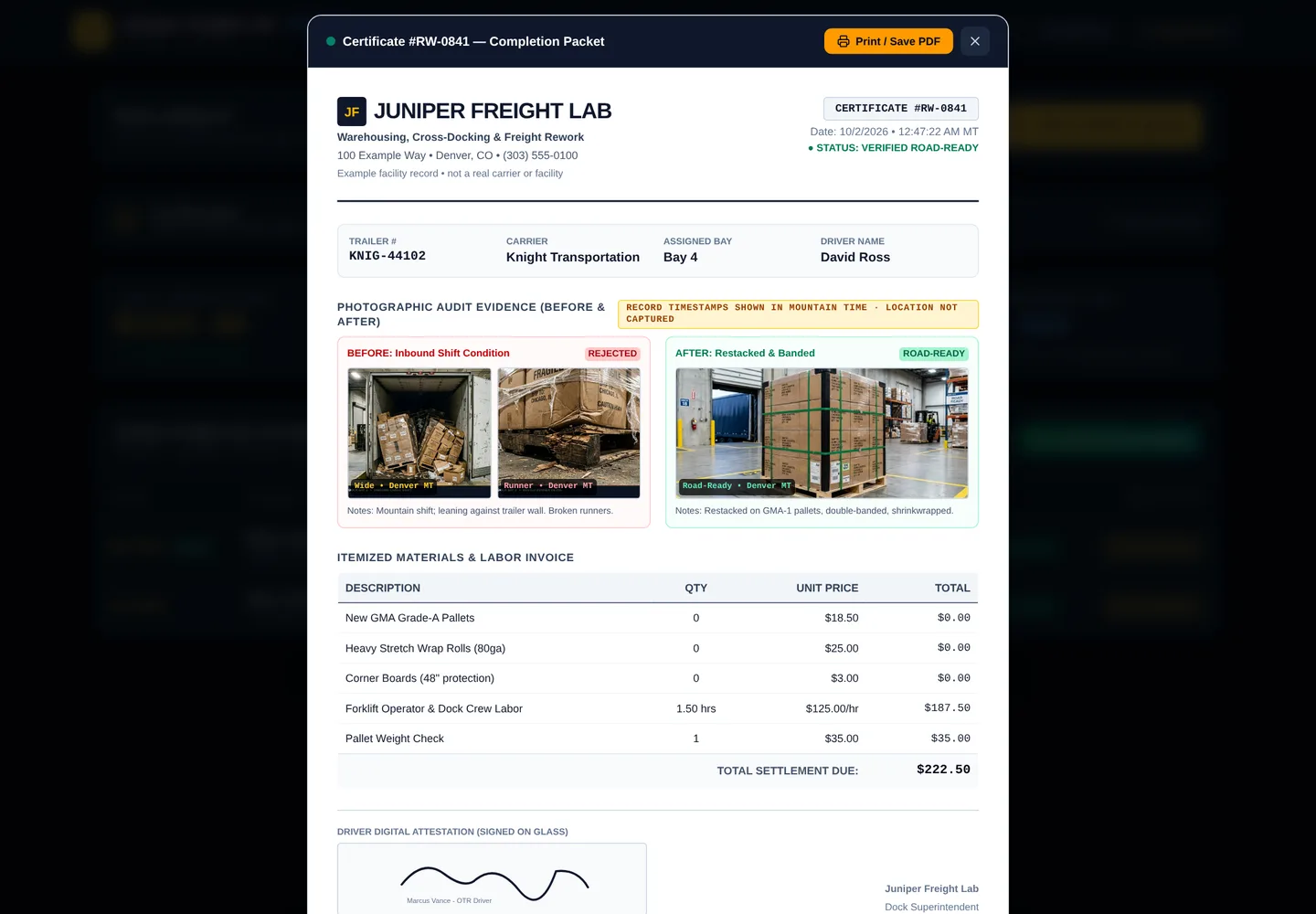
One completion packet for billing and disputes
Each job produces a printable certificate: before and after photos, an itemized invoice, and the driver's signature. Jobs can also be exported for QuickBooks.
Want this around your own dock?
We build it to fit how your operation already works, and you own the result.