
Walkthrough
Leads Rescue, step by step
A contractor on a roof cannot answer the phone, and the homeowner calls the next company. Leads Rescue texts back right away, collects the details and offers inspection times. Here is that path in five screens.
This is a simulation with invented names and numbers. The replies are scripted, and nothing connects to a real phone line, calendar or customer system.
Step 1 · Contractor
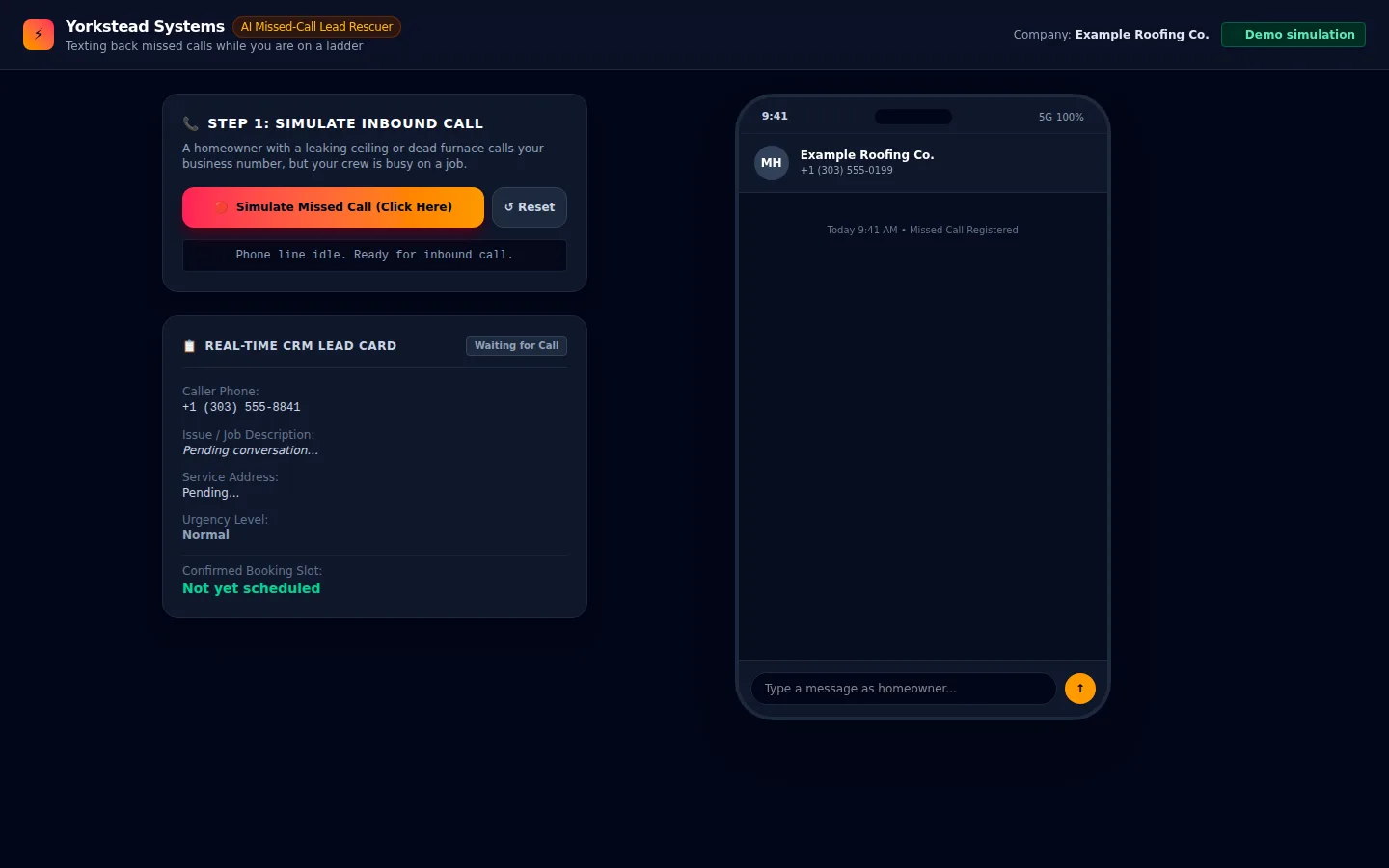
The line is idle and ready
The demo opens with a pretend roofing company, an idle phone line and an empty lead card. A button lets us simulate a homeowner calling while the crew is on a roof.
Everything on this screen is a simulation with invented names and numbers.
Step 2 · Contractor
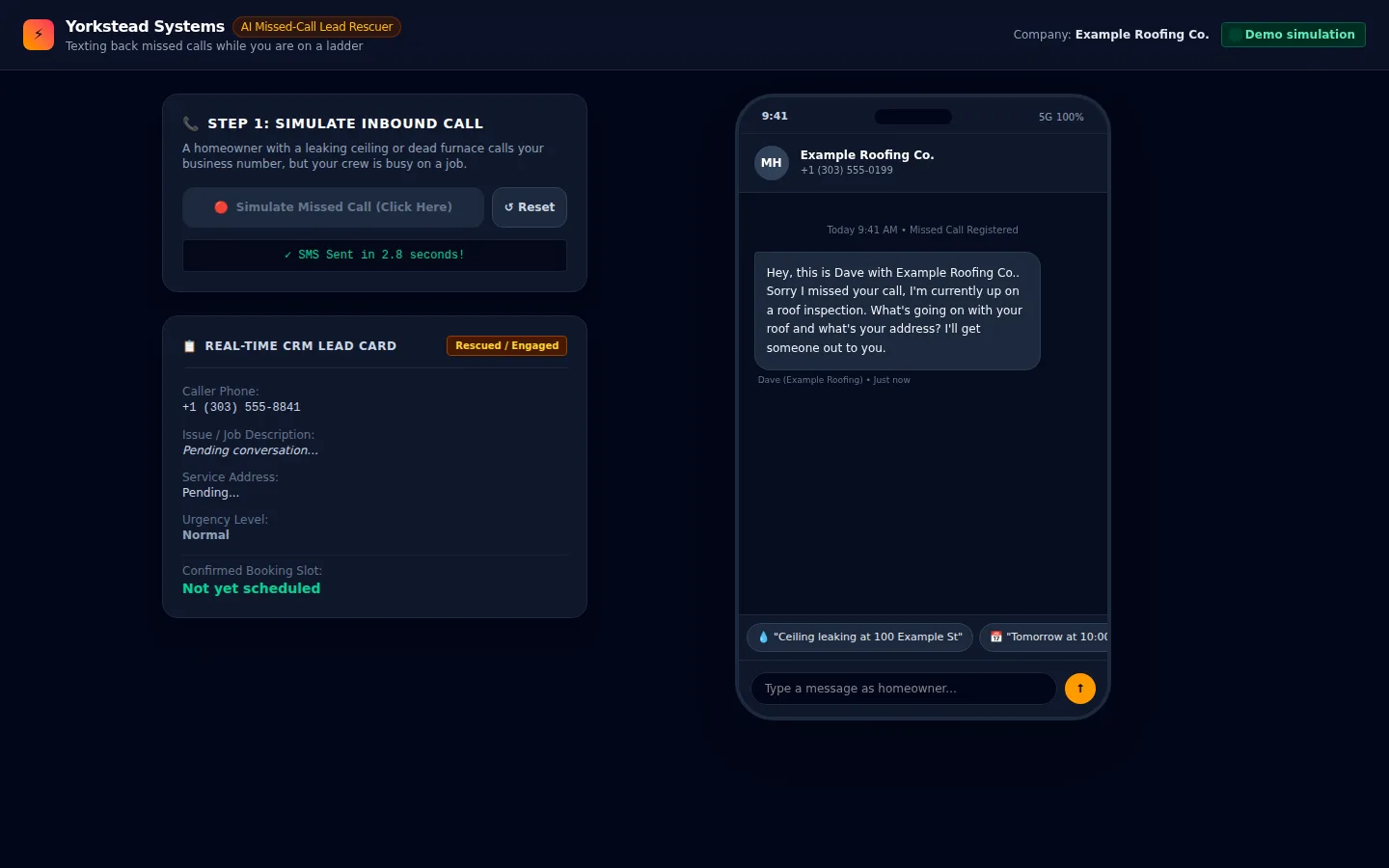
A missed call gets an automatic text
After the simulated missed call, the phone shows a text sent in the contractor's name asking what is wrong and what the address is. The lead card flips to Rescued / Engaged while the details are still pending.
The wording is a fixed script in the demo.
Step 3 · Homeowner
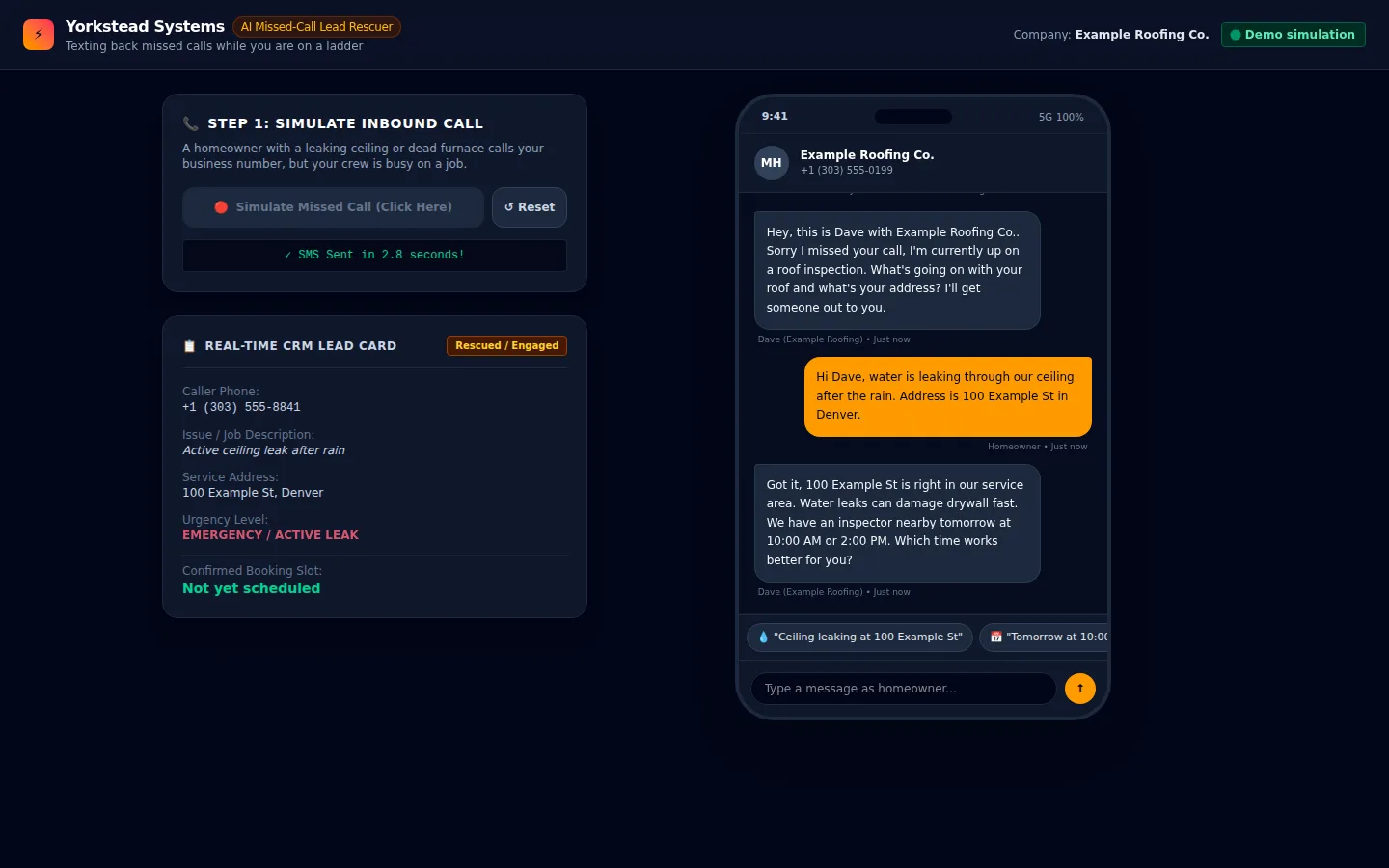
The reply fills in the lead card
We tap a suggested reply as the homeowner, reporting a ceiling leak and an address. The lead card shows the issue, the address and an emergency urgency flag, and the text thread offers two inspection times.
In the demo the fields are filled by the scripted reply, not by free-form understanding.
Step 4 · Contractor
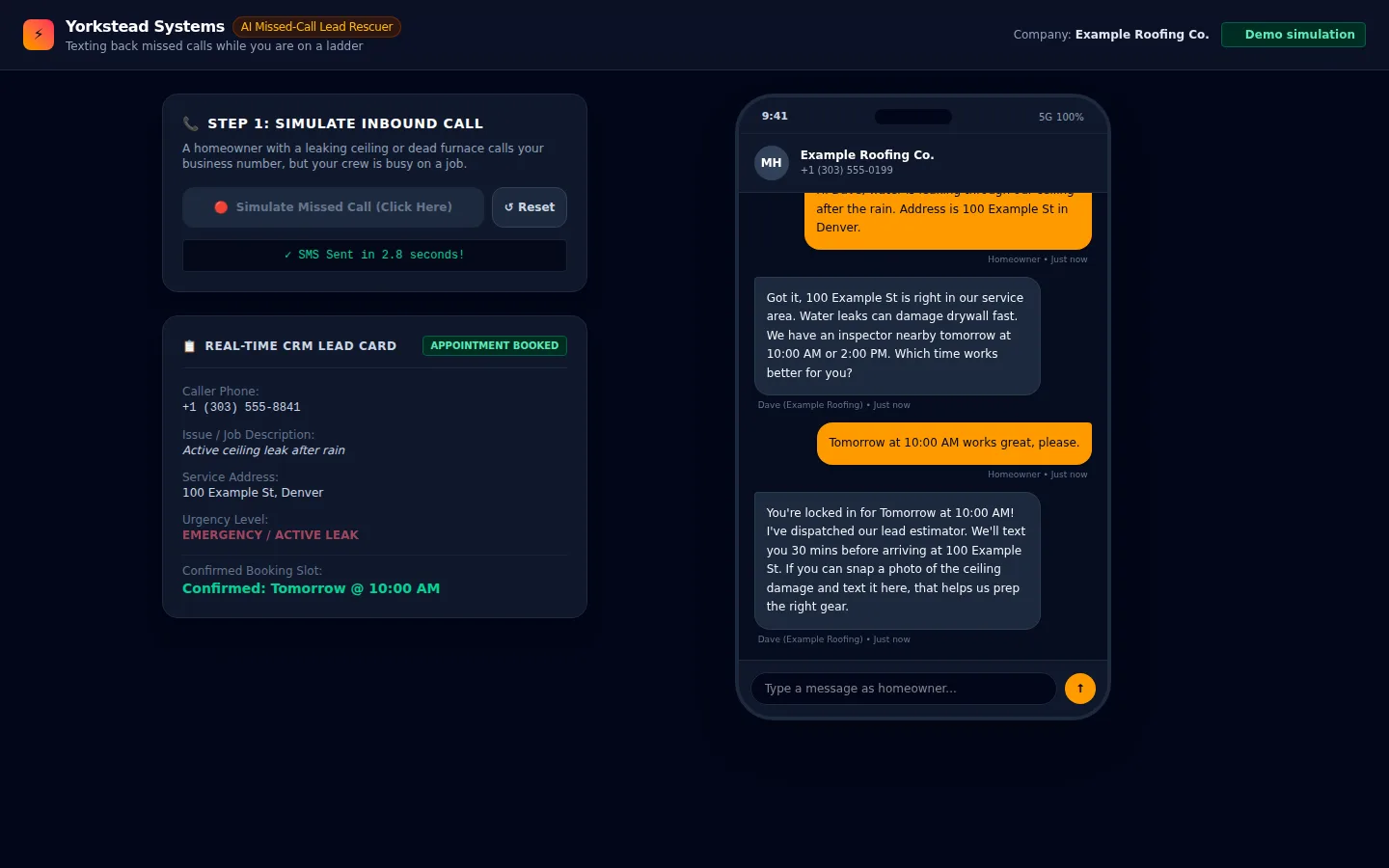
A time is picked and the lead is booked
Choosing the 10:00 AM slot confirms it in the chat and the lead card shows the appointment as booked. The contractor sees one card with the issue, address, urgency and slot.
Booking is simulated; nothing connects to a real calendar here.
Step 5 · Homeowner
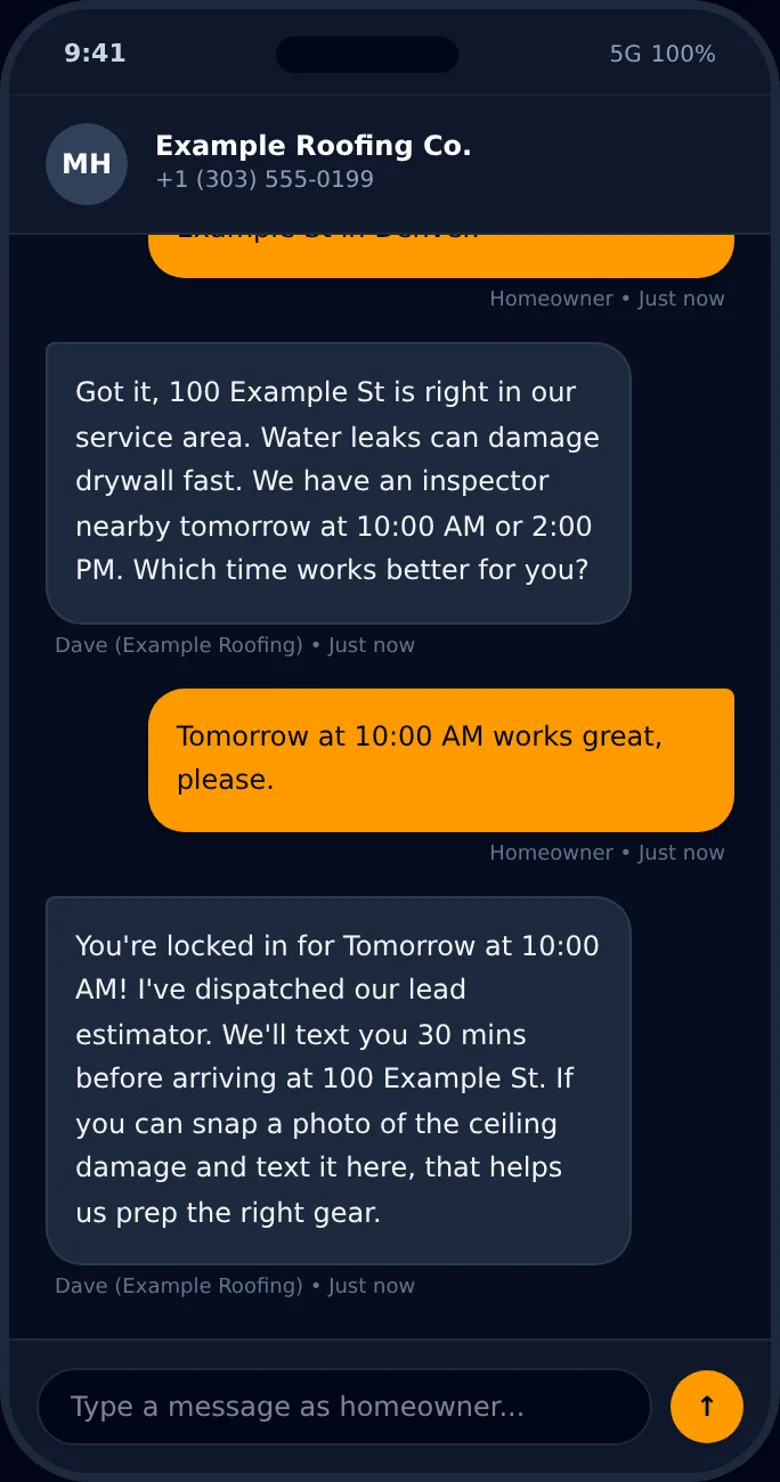
The homeowner's side on a phone
This is the same conversation as the homeowner would see it in a text thread on a narrow screen. It ends with the confirmed slot and a request for a photo of the damage.
The page itself stacks the lead card above the phone view on small screens.
Losing jobs to missed calls?
We build the follow-up around how your crew already works, and you own the result.