
Walkthrough
Employee barcode labels, step by step
Production teams that scan employee numbers at every station need labels that are easy to issue and print. This small tool keeps the employee directory and turns it into sheets of Code 128 labels. Here is that path in five screens.
These are screens from the working application, run with invented employees and numbers. It was first built for a workplace and is shown here as a demonstration.
Step 1 · HR or supervisor
Start from the employee directory
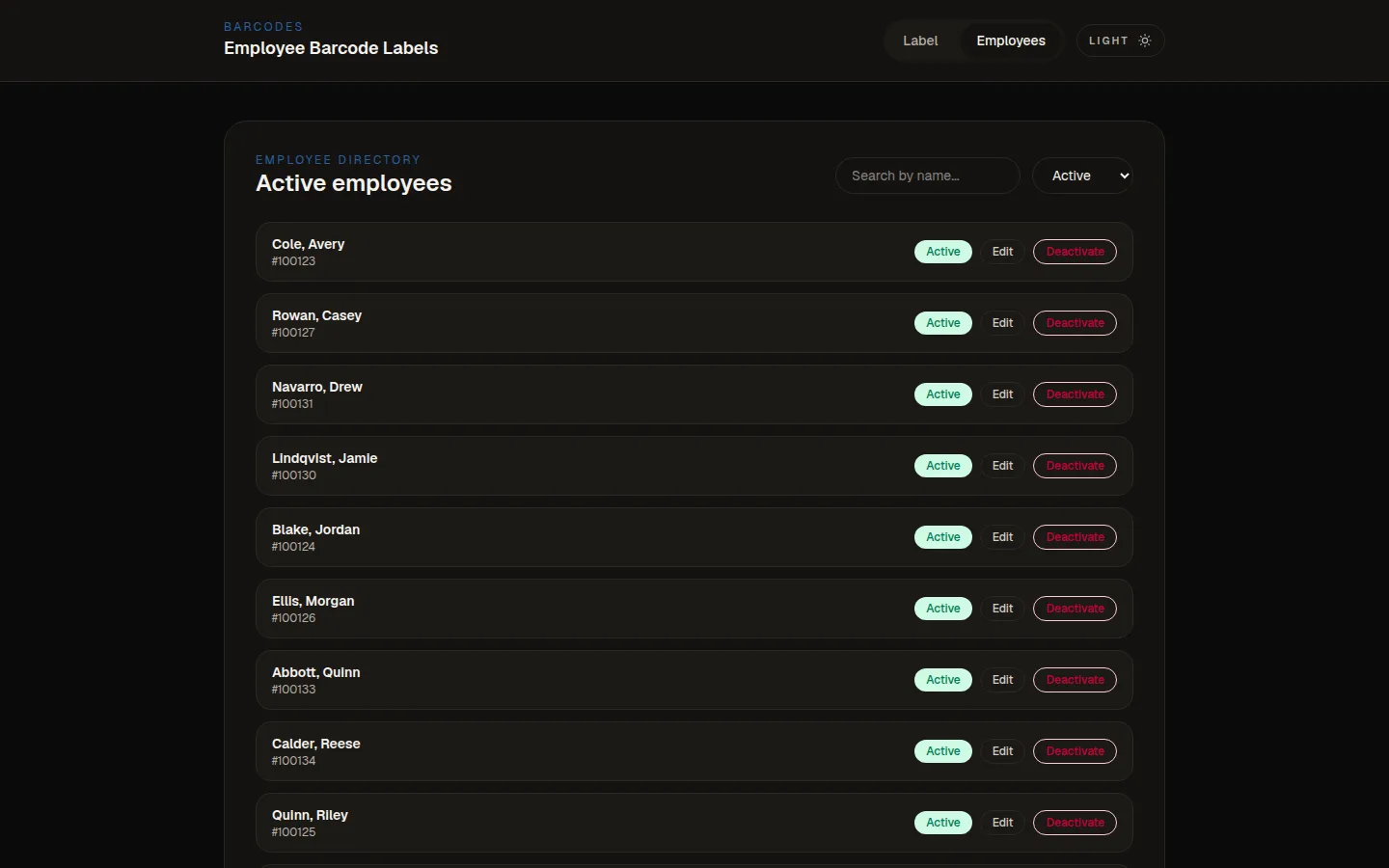
The Employees page lists active employees as last name, first name with an employee number. Each row has an Active tag, an Edit button and a Deactivate button.
A search box and a status filter sit at the top of the list.
Step 2 · HR or supervisor
Search by name
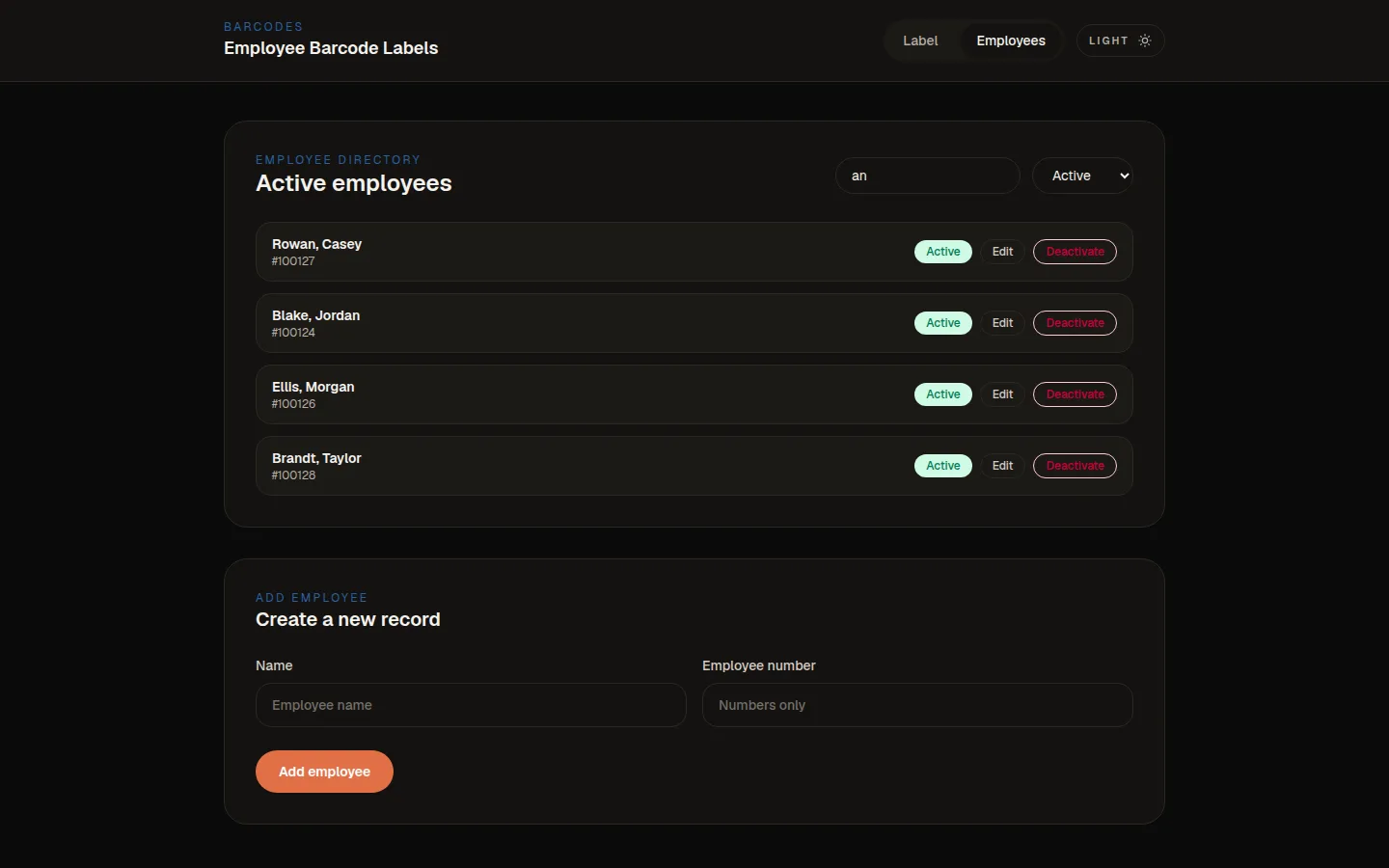
Typing in the search box narrows the list to matching names while we type. The Add employee form sits below the list, with fields for a name and a numbers-only employee number.
The status filter switches between Active, Inactive and All.
Step 3 · HR or supervisor
Edit an existing record
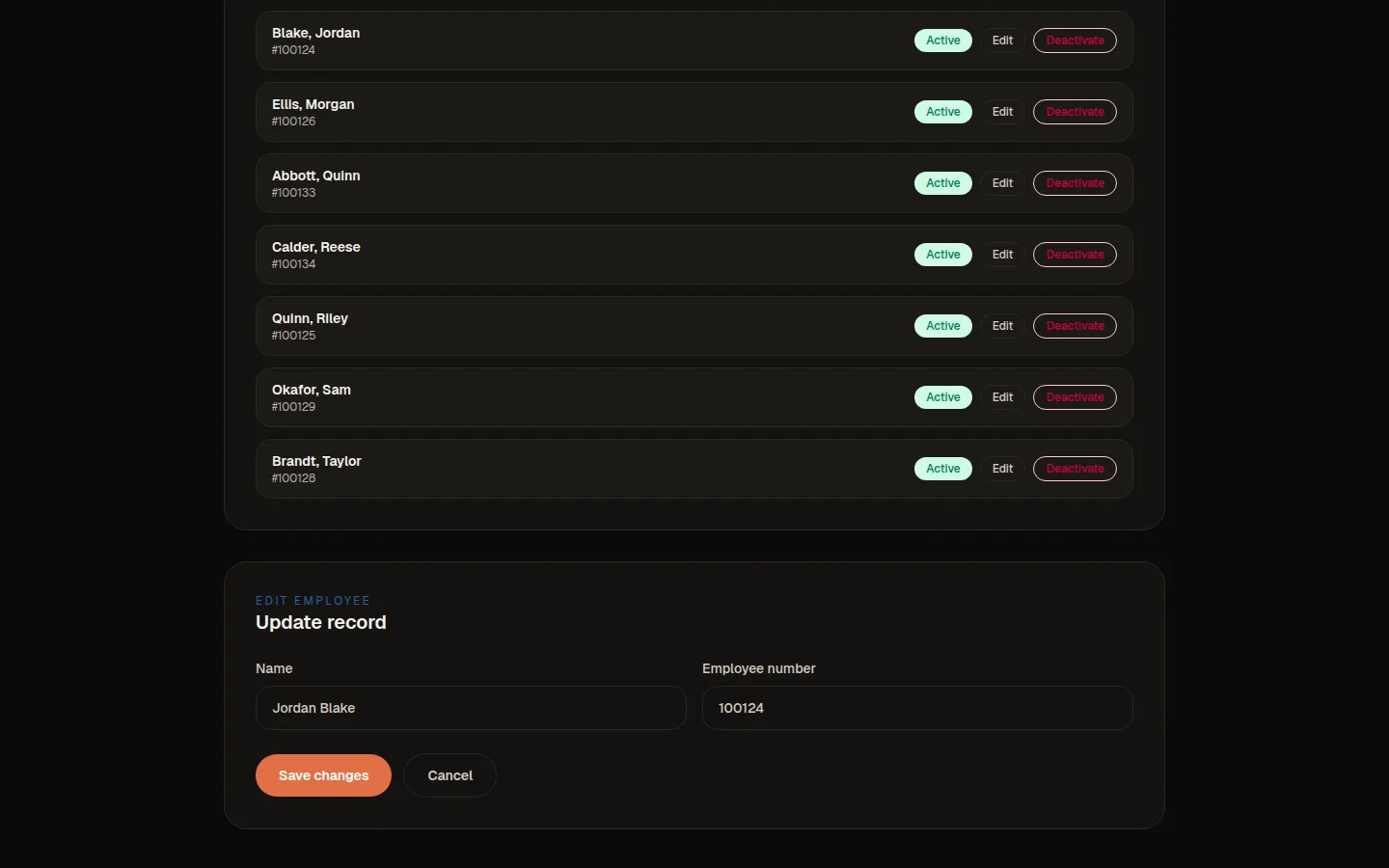
Choosing Edit loads that employee into an Update record form below the list. We can change the name or the employee number, then save or cancel.
Deactivating keeps the record but removes the person from the label builder.
Step 4 · HR or supervisor
Build labels and preview
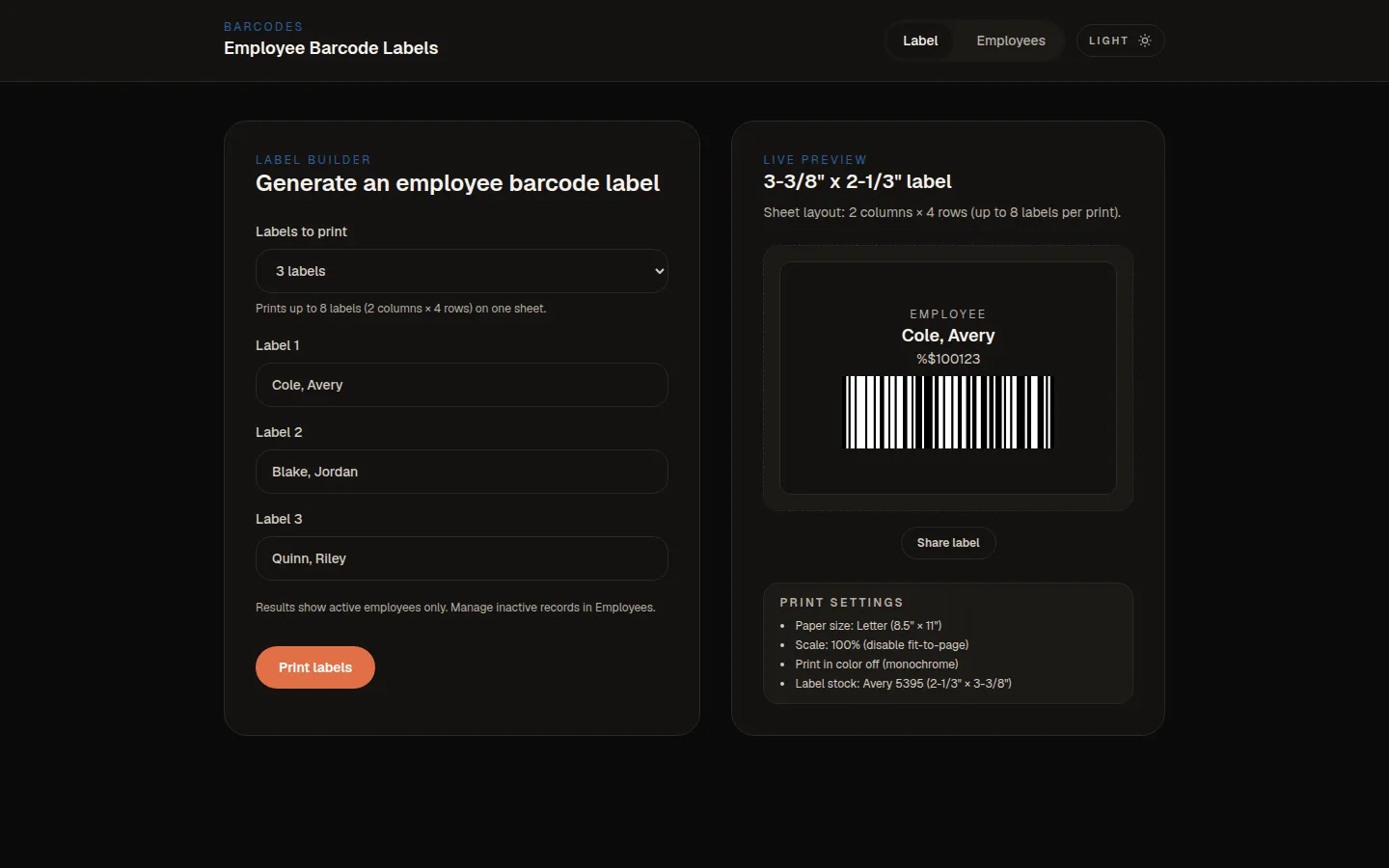
On the Label page we choose how many labels to print, from 1 to 8, and pick an employee for each. The live preview shows the name, the encoded value and the Code 128 barcode.
The preview also lists the print settings for the 2-1/3 by 3-3/8 inch label stock.
Step 5 · HR or supervisor
Print the label sheet
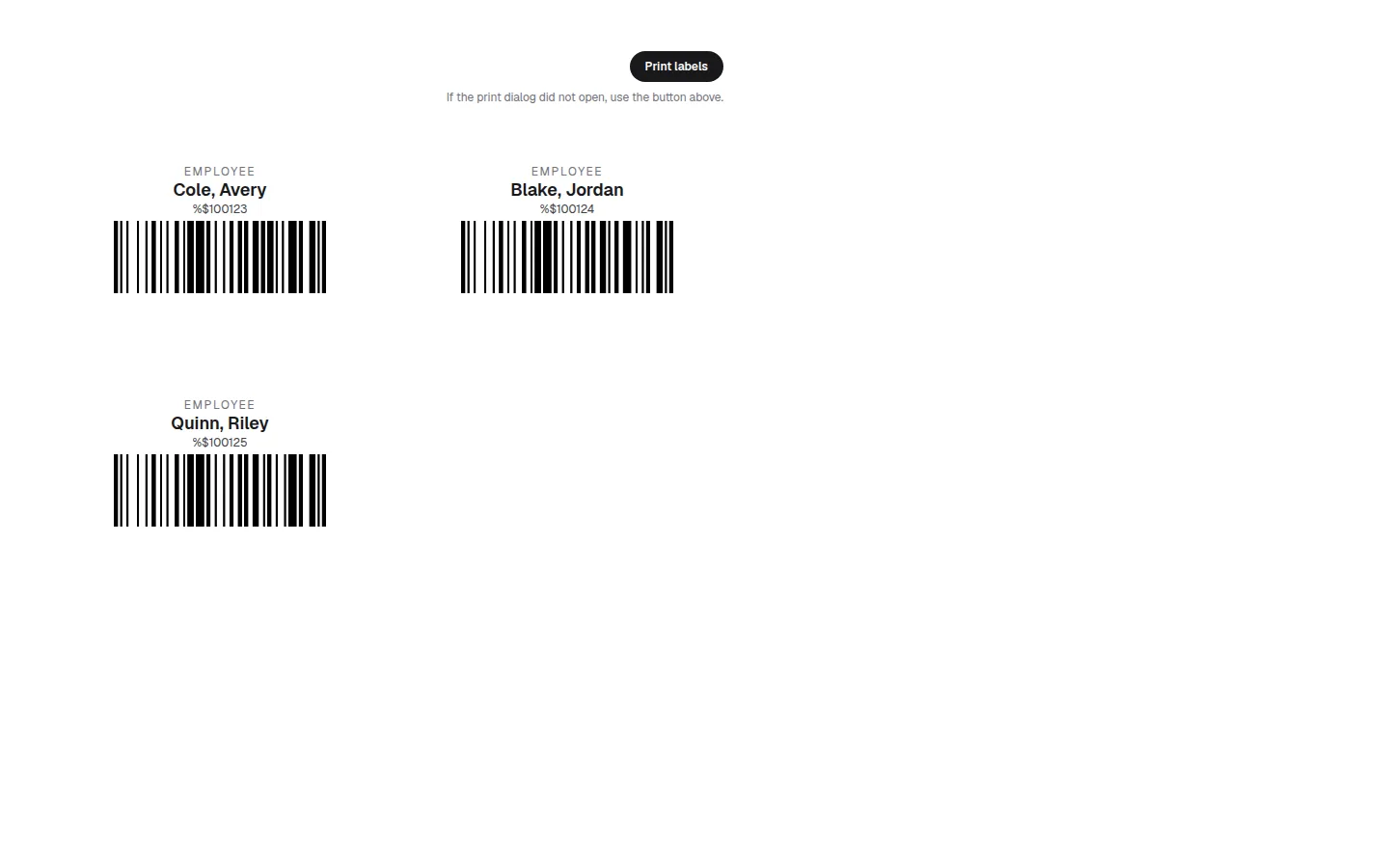
Print labels opens a sheet laid out two columns by four rows. Each chosen employee gets a label with name, value and barcode, and unused slots stay blank.
The browser print dialog opens automatically, with a button to open it again.
Need labels or scan points in your own shop?
We build small tools like this around how your operation already works, and you own the result.